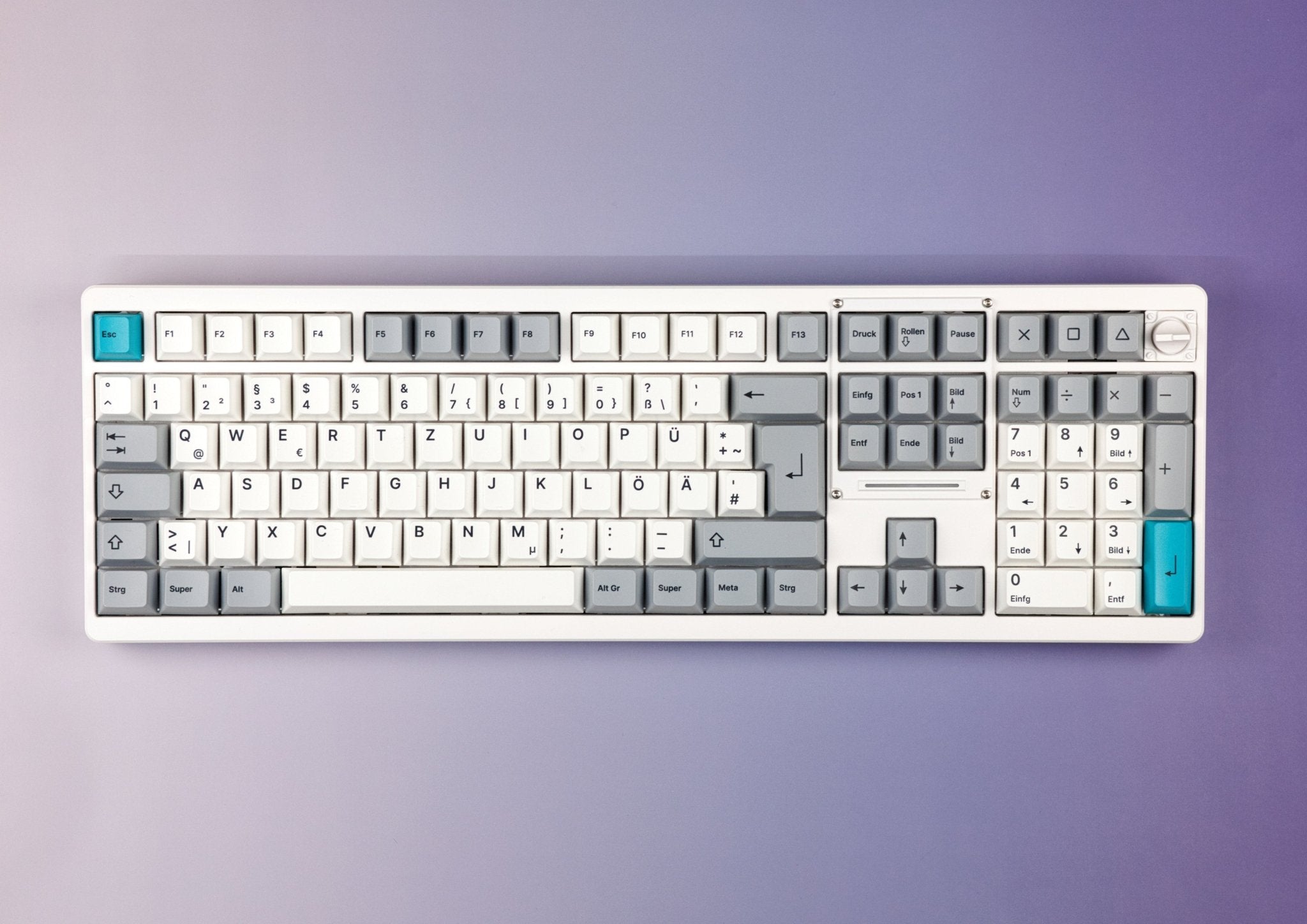
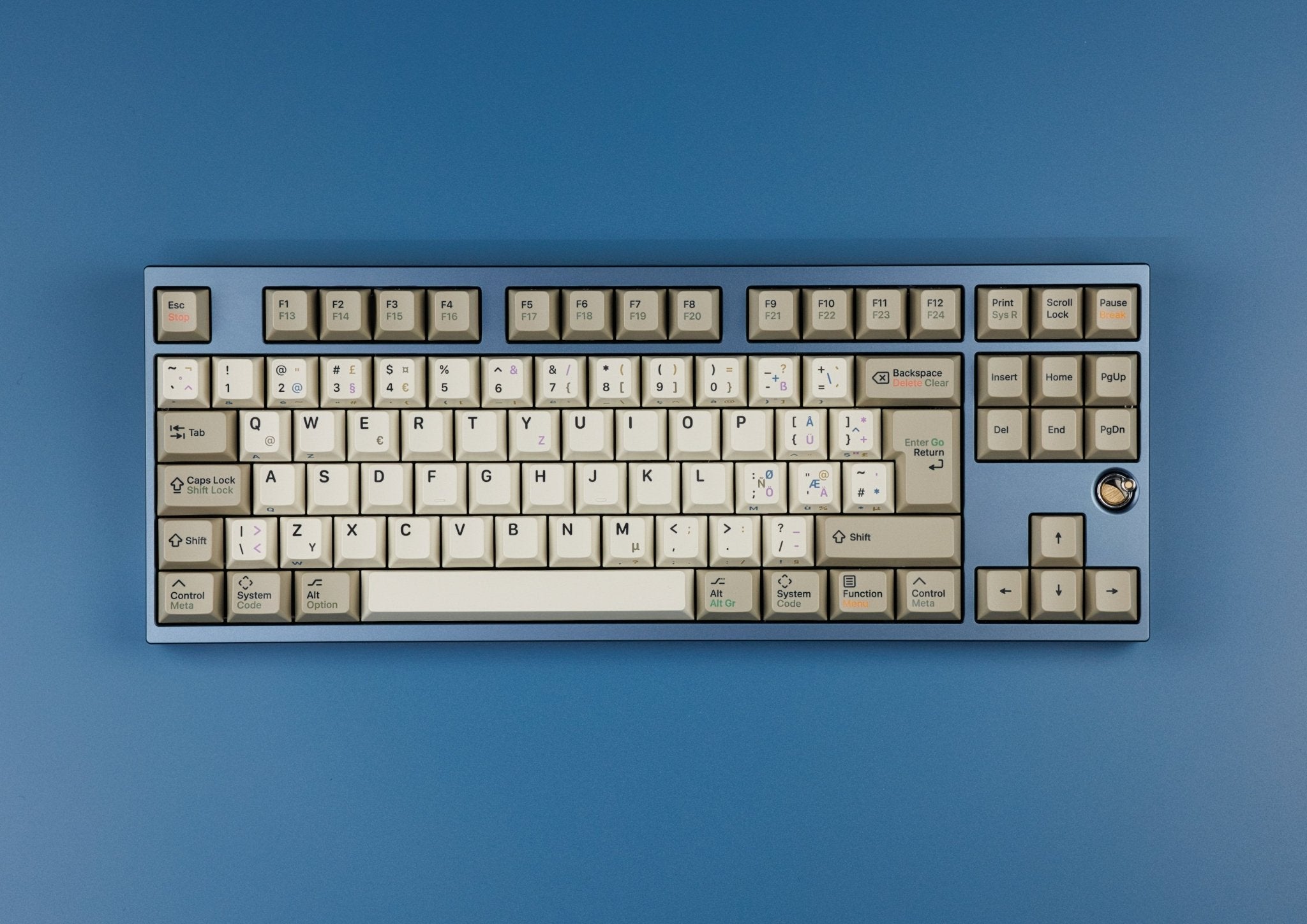
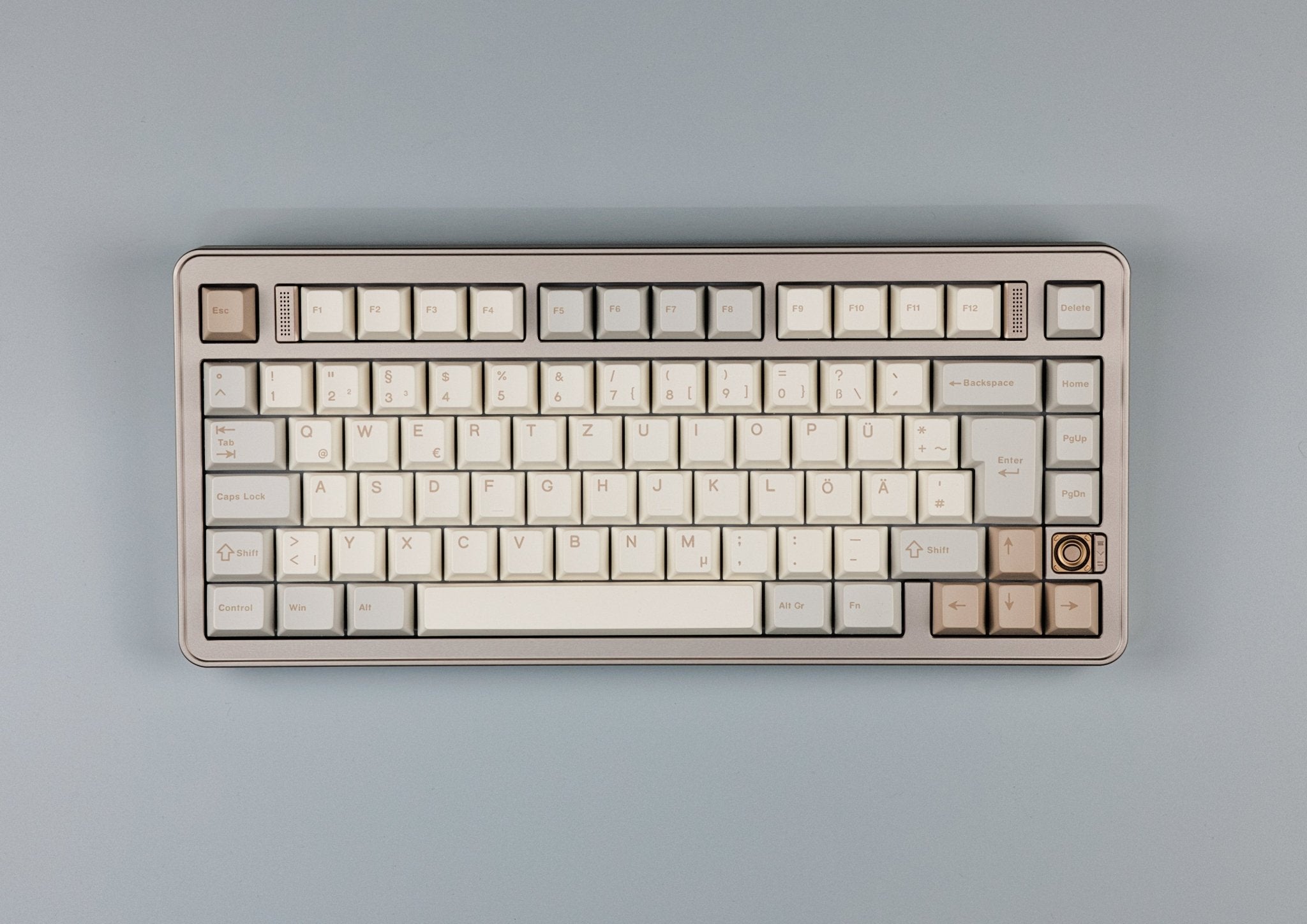
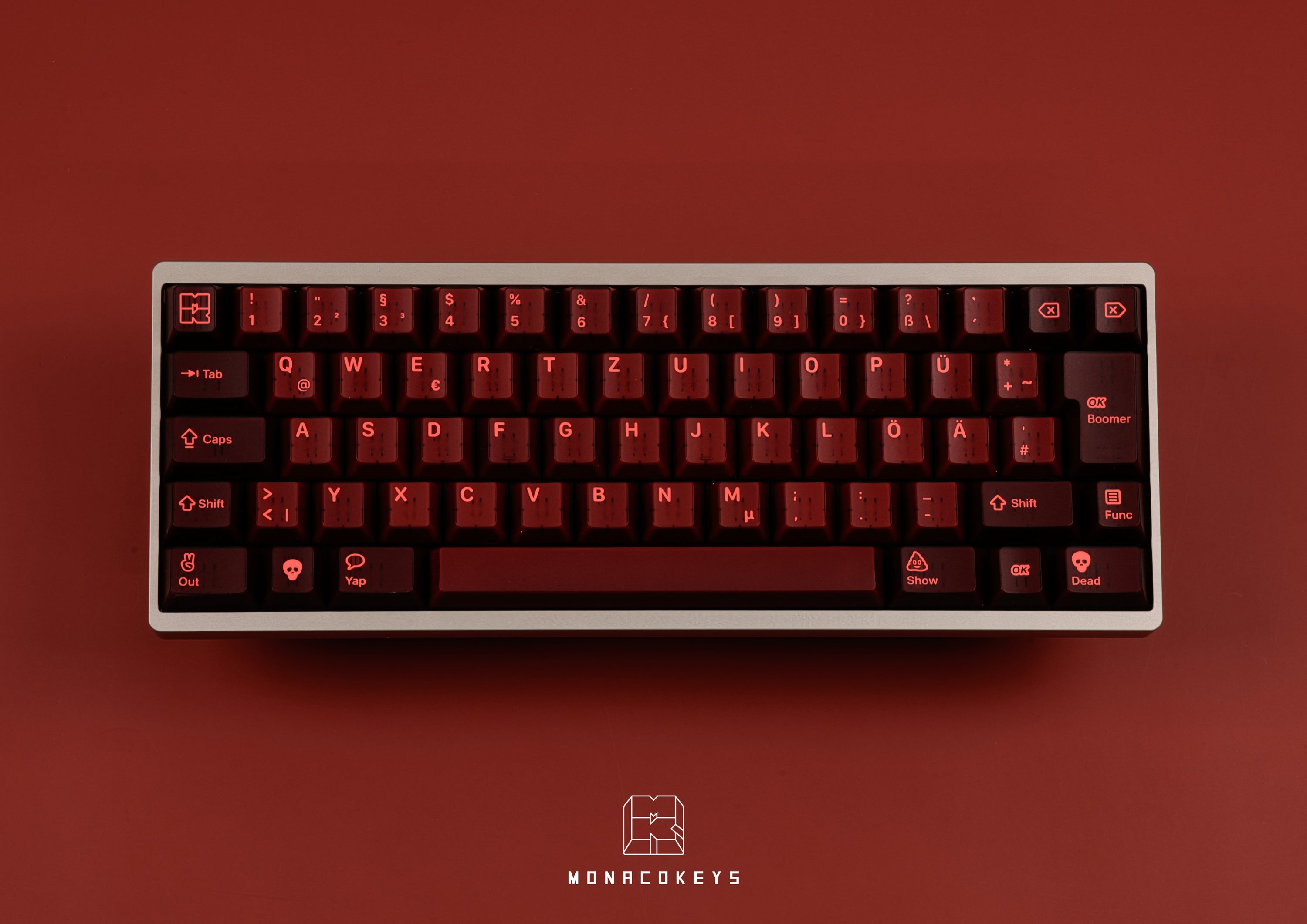
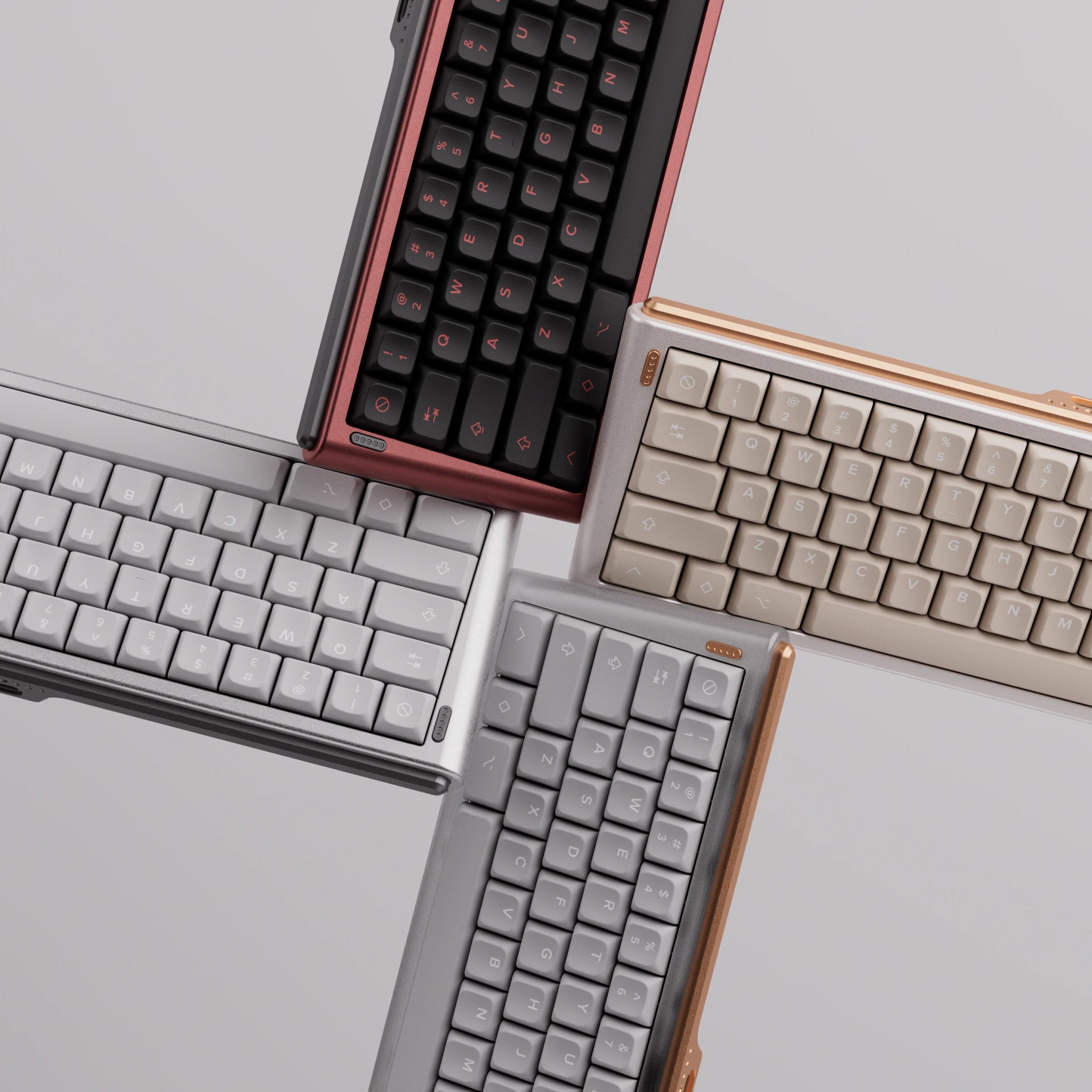

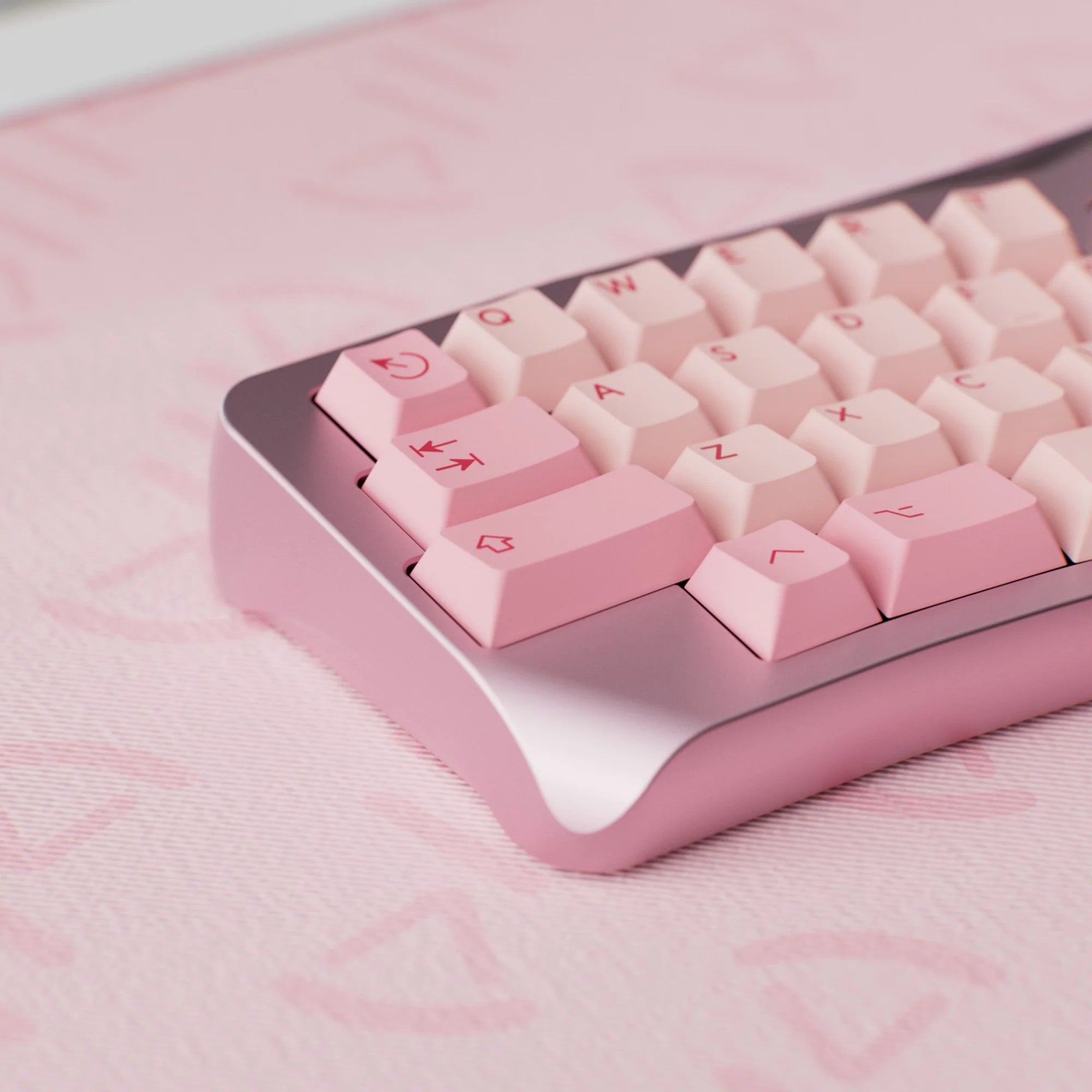

On a hot-swappable keyboard you simply plug the switches into the PCB and pull them out again whenever you like – no soldering iron needed. So you can try new switches in minutes, replace a faulty one yourself or upgrade your board step by step. This guide explains how a hot-swap socket works, which switches fit, what to watch out for when swapping and when a soldered PCB is the better choice.
Hot-swap vs soldered: what’s the difference?
The circuit board inside a keyboard is called the PCB (printed circuit board). It carries the contacts for every switch. On a solder PCB, the two metal pins of each switch are soldered directly to the board. That’s very durable, but if you want to change a switch you first have to desolder it with a soldering iron and a desoldering pump.
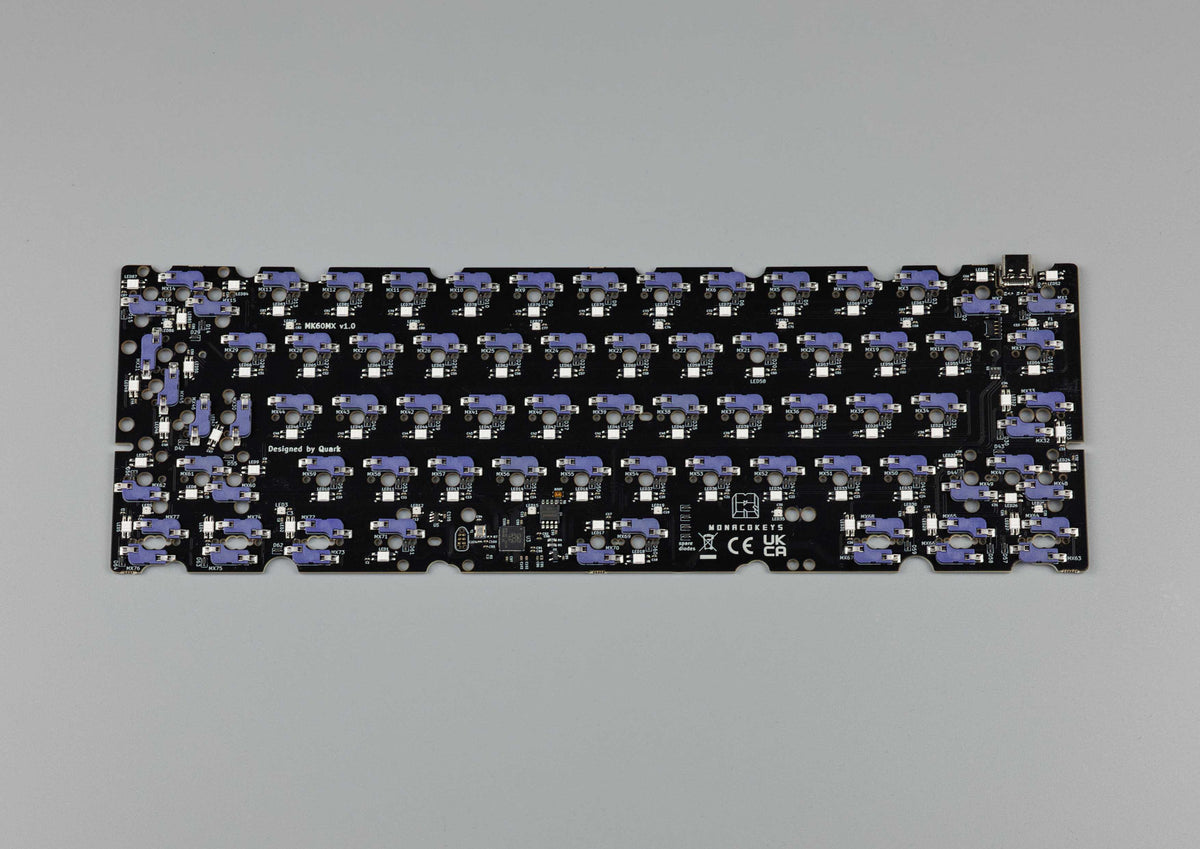
A hot-swap PCB instead has a small socket on its underside for every switch. The switch pins go through the holes in the PCB into this socket – done. All you need to change a switch is a switch puller.

How a hot-swap socket works
Most hot-swappable keyboards use sockets from Kailh or identical ones, for example from Gateron or Glorious. They are small SMD parts soldered to the underside of the PCB, where they take the two metal pins of the switch. The centre post and any plastic legs only sit in holes in the PCB and have no electrical contact.
Good to know:
- The PCB has to be designed for it. Kailh sockets can’t be added to a regular solder PCB later.
- You need a plate. The sockets don’t hold the switch in position on their own – the plate the switch clips into does that.
- The layout is fixed. Switches only go where there’s a socket. On solder PCBs with overlapping positions you choose while soldering, for example between ISO and ANSI. More on that in our guide to keyboard sizes and layouts.
- Not every socket is the same. Outemu sockets have different dimensions and only fit switches with matching pins.
Making a solder PCB hot-swappable
A soldered board can only be converted with individual sleeve sockets, for example from Mill-Max or our MK Solder Hot-Swap Switch Sockets. Two sleeves per switch are soldered into the existing solder holes. That’s more than 100 solder joints per board – a job for anyone who is confident with a soldering iron. On PCBs for Kailh Choc switches the holes are usually too small. And depending on the socket, the switch may sit slightly higher afterwards: Mill-Max 0305, for example, raises it by 0.64 mm, which changes how it sits in the plate and how it sounds.
3-pin vs 5-pin switches: which ones fit?
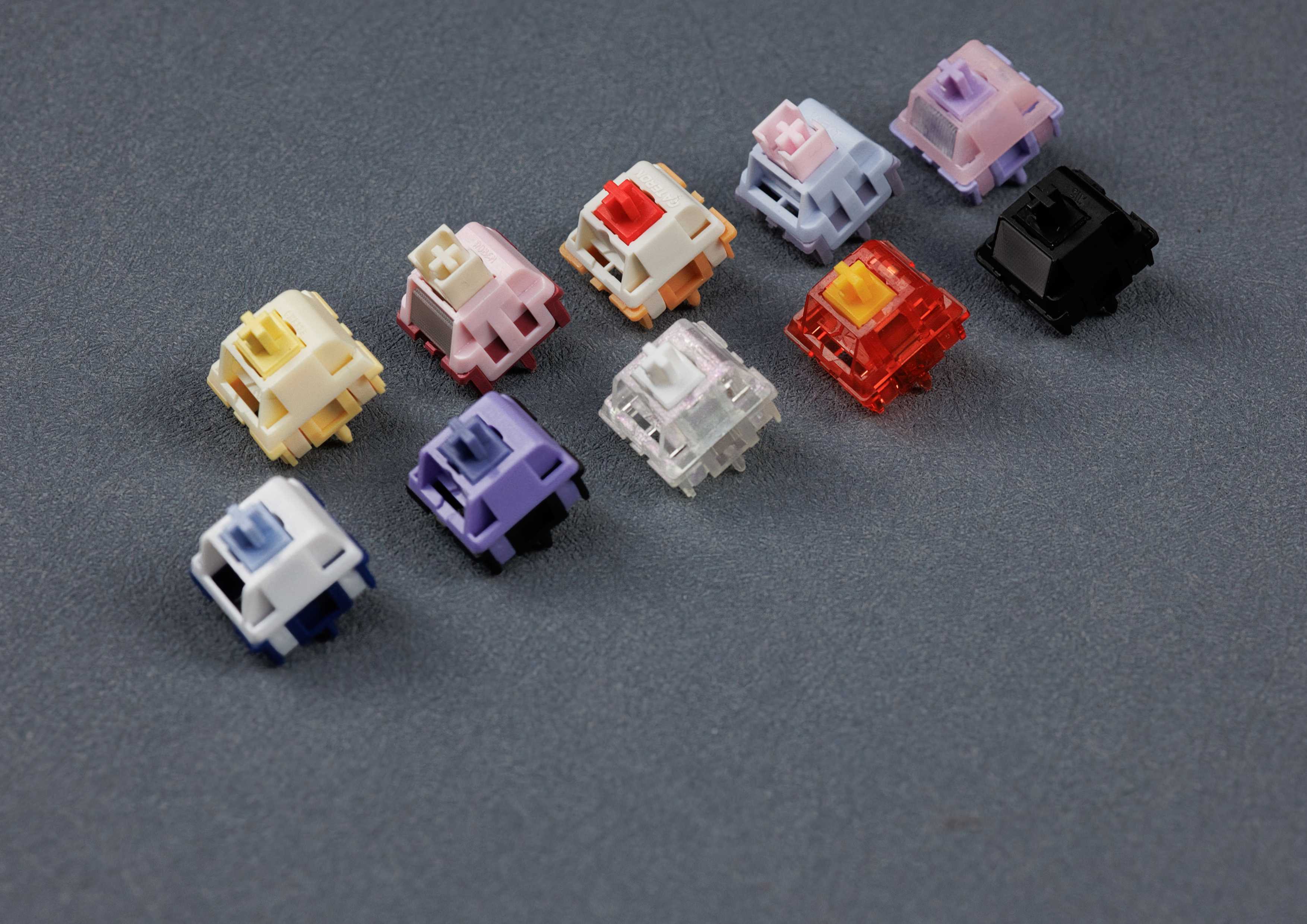
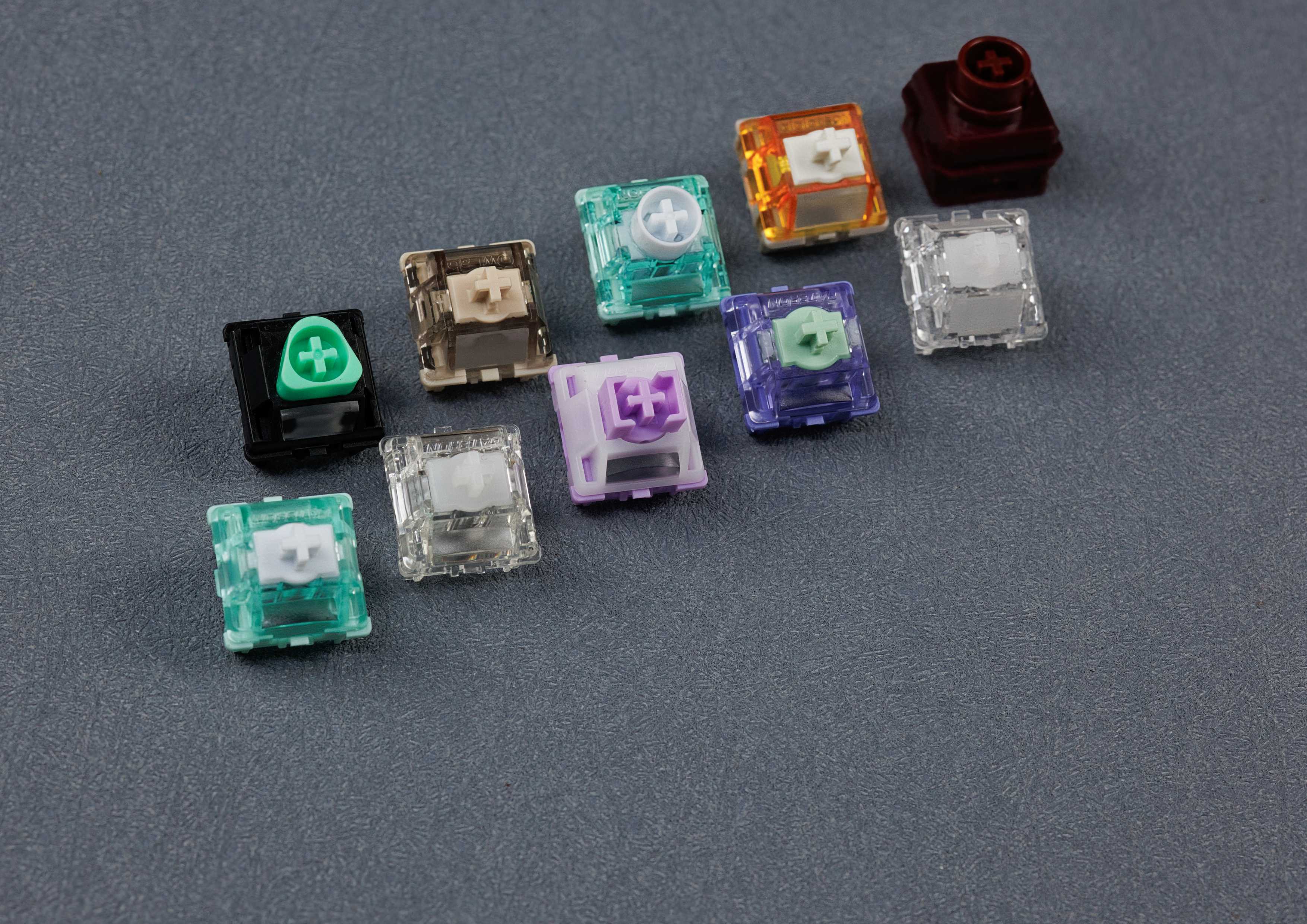
MX switches come in two versions. 3-pin switches (also called “plate mount”) have two metal pins and the plastic centre post. 5-pin switches (“PCB mount”) add two plastic legs that align and stabilise the switch in the PCB.

Almost all current hot-swap PCBs have holes for all five pins – our product descriptions then say “5-pin MX compatible”. Both versions fit those boards. If a PCB only has three holes, just clip off the two plastic legs, for example with a nail clipper; the metal pins stay. It doesn’t work the other way round: you can’t add legs to a 3-pin switch. Builds without a plate require 5-pin switches because nothing else holds the switch – but that only works with a soldered PCB.
Magnetic Hall effect switches are the exception: they fit mechanically but need a PCB with Hall sensors. A regular hot-swap keyboard won’t detect them. Find out more in our guide to Hall effect and Rapid Trigger. The other switch types are covered in keyboard switch types explained.
How to swap switches step by step
- Remove the keycap. A keycap puller with a larger contact surface works best, such as the one on the TX Keyboard Multi Tool, because it doesn’t grip at single points. ABS and PBT are soft materials, and keycaps that sit very tight are easily damaged or dented by pullers that only grip at points. Wire pullers are good too and won’t scratch the sides. On keys with a stabilizer, pull straight up without tilting.
- Pull the switch. The switch puller grabs the two clips at the top and bottom of the housing. Use it to pull the switch straight up – no wiggling and no prying sideways.
- Check the pins. If a metal pin on the new switch is bent, straighten it with flat tweezers.
- Insert the switch. Line the switch up and press it straight down into the plate until it clicks in. Support the PCB from below with your thumb while you do it. With soft plates made of POM, FR4 or polycarbonate, a plate fork that supports the plate from below helps.
- Test it. Refit the keycap and check that the key registers reliably.

Which tools do you need?
Two tools are all it takes to swap switches: a keycap puller and a switch puller. Many keyboards come with both. A keycap puller with a larger contact surface and a metal switch puller such as the TX Switch Puller last longer than the plastic tools in the box. At an awkward angle a metal puller can touch the case, though – which is why the TX Keyboard Multi Tool 5-in-1 has a protective cap for its switch puller. Flat tweezers for straightening bent pins are handy too. You only need a screwdriver if you want to open up the board.
The Keyboard Tool Collection puts everything in one set (switch puller, wire keycap puller, tweezers, switch opener, brushes and stem holder). You’ll find more in our tools collection.
Common problems and how to fix them
Hot-swap sockets are designed for normal switch swapping. When they break, it’s almost always because a switch was inserted at an angle or pried out – not because of wear.
- A key doesn’t work after swapping: usually a bent pin. Pull the switch, straighten the pin with tweezers and insert it straight again. If a pin is badly kinked, use a different switch.
- Torn solder pad: the socket only sits on two small solder pads. Pressing from above without support, or prying sideways when pulling, can lift a pad. The key then won’t work until the socket is re-soldered. If another switch doesn’t work in that spot either, that’s a sign.
- Loose socket: if a socket moves while you type, it can eventually lift its pad – often an early sign of failure.
Take extra care with thin PCBs (1.2 mm) or boards with flex cuts: the solder pads sit on less material and are more sensitive to pressure. Why these boards are popular anyway is explained in our guide to gasket mount and keyboard sound.
Hot-swap vs solder compared
| Hot-swap | Soldered | |
|---|---|---|
| Mounting | switch plugs into sockets under the PCB | pins soldered directly to the PCB |
| Changing switches | a few minutes with a switch puller | desoldering with iron and pump |
| Layout | fixed, only where sockets are | more flexible, positions can overlap |
| Plate | required | optional, half plate or plateless possible |
| Durability | pins can bend, pads can tear | very robust |
| Best for | beginners, trying switches | finished builds, plateless builds |
Hot-swap or solder: which is right for me?
- You’re just getting started or still unsure about switches: hot-swap. You can change switches at any time without knowing how to solder. With the MonacoKeys Switch Tester you can try different switches right in your keyboard.
- You want to lube or mod your switches: hot-swap saves you the desoldering. Our guide on how to lube switches shows how it’s done.
- Your build is finished and staying that way: solder is more robust and offers more layout options.
- You want to build without a plate: that only works soldered and with 5-pin switches.
You’ll find hot-swap boards among our mechanical keyboards and individual boards under keyboard PCBs – such as the MK65MX, our own hot-swap 65% PCB. Matching switches are in our switch collection.
FAQ: hot-swappable keyboards
How often can I swap switches on a hot-swap keyboard?
There’s no fixed number. The sockets are designed for normal swapping and almost always break from prying or inserting switches at an angle, not from wear. Pull switches straight up and support the PCB from below when inserting them.
Do 5-pin switches fit a hot-swap keyboard?
Yes, if the PCB has holes for the plastic legs – which is the case on almost all current hot-swap PCBs. Otherwise, clip the two legs off. The sockets only take the metal pins anyway.
Can I convert a soldered keyboard to hot-swap?
Only with individual sleeve sockets such as Mill-Max or the MK Solder Hot-Swap Switch Sockets, which are soldered into the solder holes. That’s two sockets per switch and a lot of soldering. Kailh sockets can’t be retrofitted.
Why doesn’t a key work after swapping the switch?
Usually a pin is bent and isn’t in the socket. Pull the switch, straighten the pin with flat tweezers and insert the switch straight again. If the key stays dead with another switch too, the socket may be damaged – our support team is happy to help.



 1557
1557
 97
97